



Prestashop Product Serial Key Manager

Prestashop Product Serial Key Manager: A serial key is a unique string that may be a group of alphabets, numbers, special characters, or a mix of these. These keys are associated with individual products and used for product identification and inventory management.
Prestashop Product Serial Key Manager offers you to add serial keys to products. With this extension, you can add multiple keys for the individual combinations of a product. The serial keys are sent to the customers via email once the order is completed.
Manually add serial numbers for individual products or add serial keys to multiple products at once by uploading a CSV file.
Features of Prestashop Product Serial Key Manager
- Create and assign serial keys to catalog products.
- Generate multiple keys for the different combinations of a product.
- Admin can select the customer group(s) for which he wants to assign serial keys.
- Configure the order status(es) to assign the serial keys.
- Choose to display the serial keys in the invoice, order details page, or both.
- The customer gets the serial keys in his/her email.
- Customers can view all the serial keys received from their account.
- Customers can also view the serial keys from the order details page.
- Admin can View a list of products for which the serial keys are added under a separate tab.
- Import serial keys in bulk via CSV file.
- Easily search the products and orders for which the serial keys are added.
- View the number of used serial keys of a product.
Installation
- Go to back-office ->modules ->Module Manager.
- Now, click on “Upload a module” button and select the module’s zip file.
- In this way, the module gets install on Prestashop.


Prestashop Product Serial Key Manager Configuration

- Allow Duplicate Key – If disabled, then an error will display upon the generation of duplicate keys of a product.
- Assign key to particular group – From here, admin can choose the customer groups and the users of these groups will receive serial keys after placing orders.
- Show keys in – This option enables admin to show the serial keys on invoice, order details page, or both.
- Assign Keys in – This option enables admin to define the order status(es). The module automatically send serial keys if the status of order is from the selected status.
- Send email to customer – If set to YES, then the module will send an email to the customer for the serial keys assigned after completing an order.
- Send email separately as per key – If a customer purchases 10 quantities of a product XYZ, then the module will generate and issues 10 unique serial keys. The customer will receive an email for each key generated.
Serial Key Manager
Post-installation, a new tab “Serial Key Manager” gets available in the back office from where admin can add and manage serial keys for the products.

Add new keys for Products

On clicking “Add new” button, a new form appears where admin can select the product and its combination for which he wants to generate a serial key.

After selecting the product and its combination when the admin clicks on the “Generate key” button, a serial key for a product gets created as shown below:

Admin can view serial key added under the “Keys” tab. Also, admin can edit or delete the serial key.

Admin can also generate serial keys for individual products and their combinations from the edit product page. Go to Catalog->Products->Edit product->Modules.

On clicking the “Configure” button, a form appears where admin has to select the combination for which he wants to create the serial key.


In the above screenshot, we can see the serial keys generated by admin for a product combination.
Front End Workflow
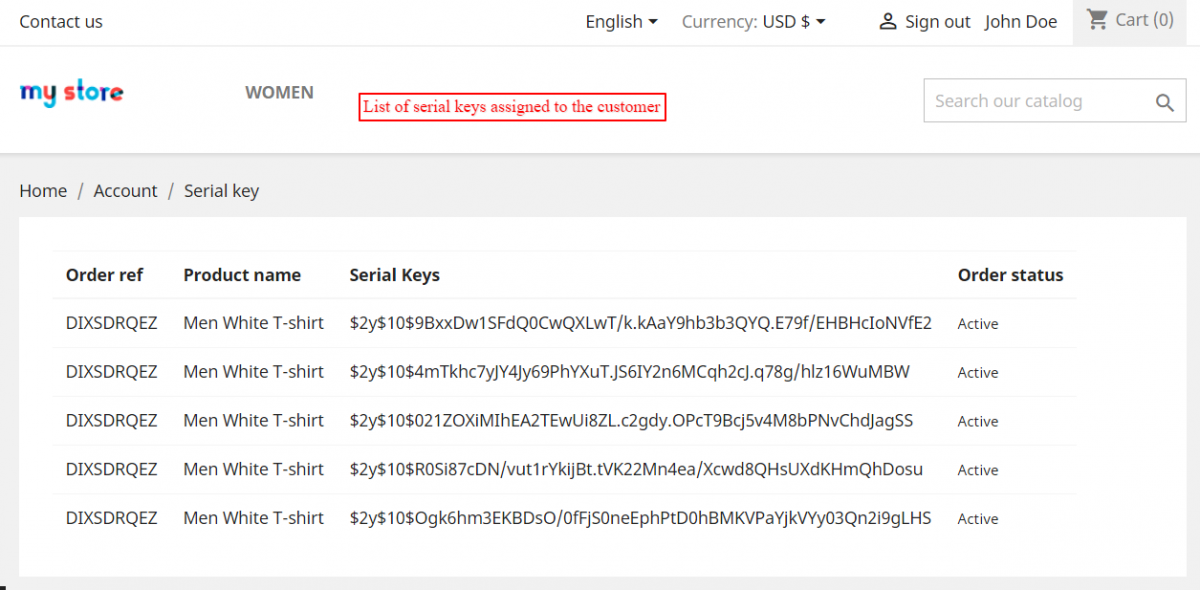
Post-installation, a new tab “Serial Keys” gets available in the customer’s account. From this tab, a customer can view all the serial keys allotted to him.

Suppose a customer places an order of the product for which admin has generated the serial keys. Now, when the status of that order changes then the module will automatically issue the serial key to the customer. If a customer has order 5 quantities of a product, then the module will issue 5 unique serial keys i.e one for each quantity.
A customer can also view the serial keys on the order details page.

View List of Products
Under “Products” tab, admin can view:
- List of products for which he has added serial keys.
- Number of keys added for a product or product combination.
- Number of used keys.
- Serial keys added for a particular product or product combination.

When admin clicks on the “View” button, he can see the order number with which he has added serial keys and the customer’s name who places the order.

Import Serial Keys
Admin can also choose to add serial keys in bulk by uploading a CSV file. In a CSV file, admin needs to enter the product id, combination id, and serial keys.

After uploading the CSV file, admin can view all the products for which serial keys have been added under “Products” tab.

Search Filters
Under “Search” tab, admin can search:
- Products on which he has assigned the keys via product name and reference.
- Orders for he has added serial keys by order id, product reference, and customer name.
- The Keys.


Error Log
Suppose admin has generated 4 keys for a combination of product ABC. Now, if a customer orders 6 quantities of that combination then in this case customer will not receive serial keys for an order. Such cases are logged under the “Error Log” tab. Admin can view for which products the serial keys are out of stock and can generate more keys.

On clicking the “View” button, admin can see the order id of an order for which the keys are not assigned due to insufficient quantity.

This was all about Prestashop Product Serial Key Manager module.
Support
For any kind of technical assistance or query, please raise a ticket at http://webkul.uvdesk.com or send us a mail at support@webkul.com.
Current Product Version - 4.0.0
Supported Framework Version - 1.7.x.x
. . .
Back to Top

Advertising by Adpathway